
Features
What SQDM does, and how.
Each section says what a feature does, how it works underneath, what it needs, and where it stops. Nothing here is on a roadmap — it all ships in version 0.1.
01 / 13
Up to 32 connections for one file
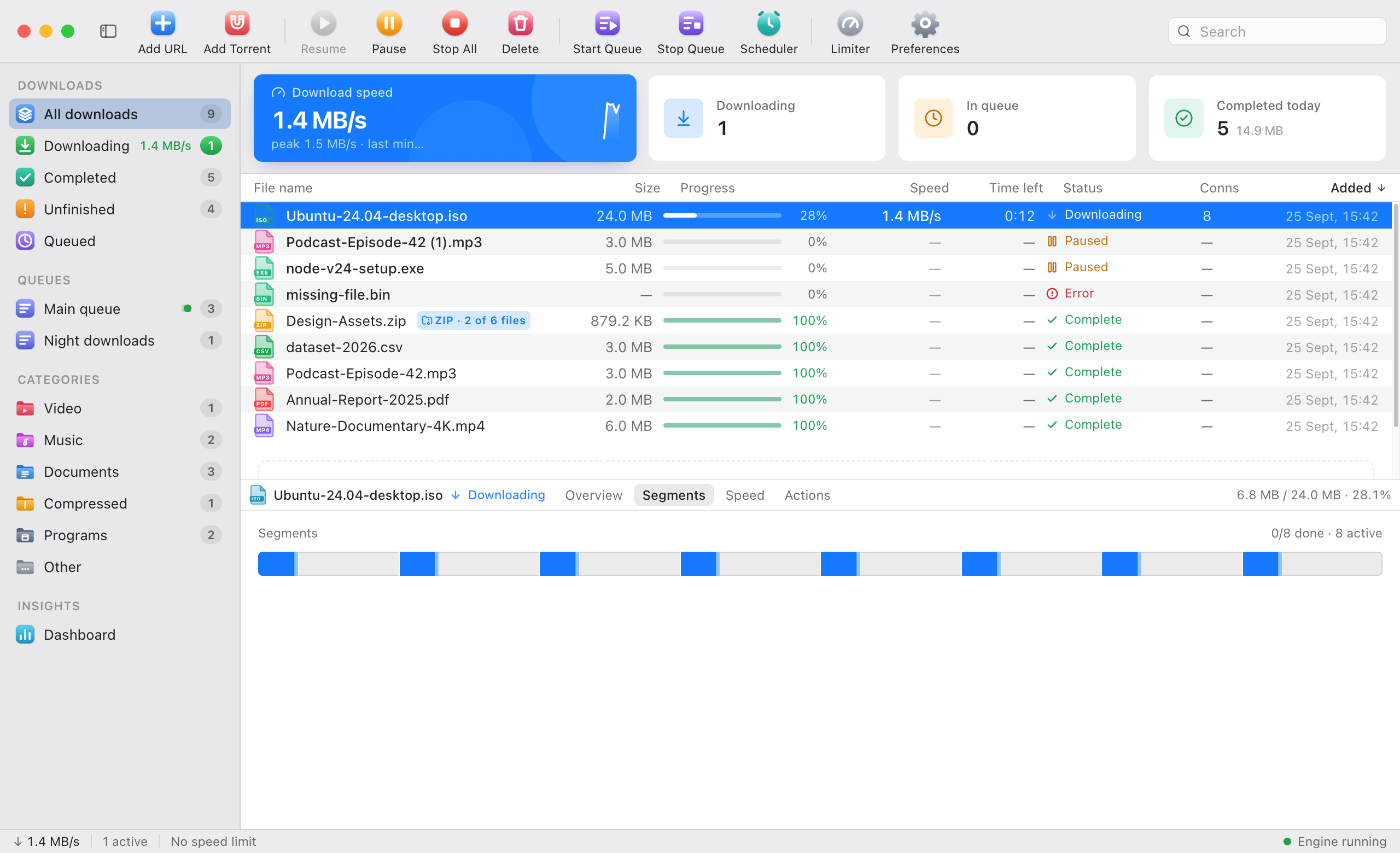
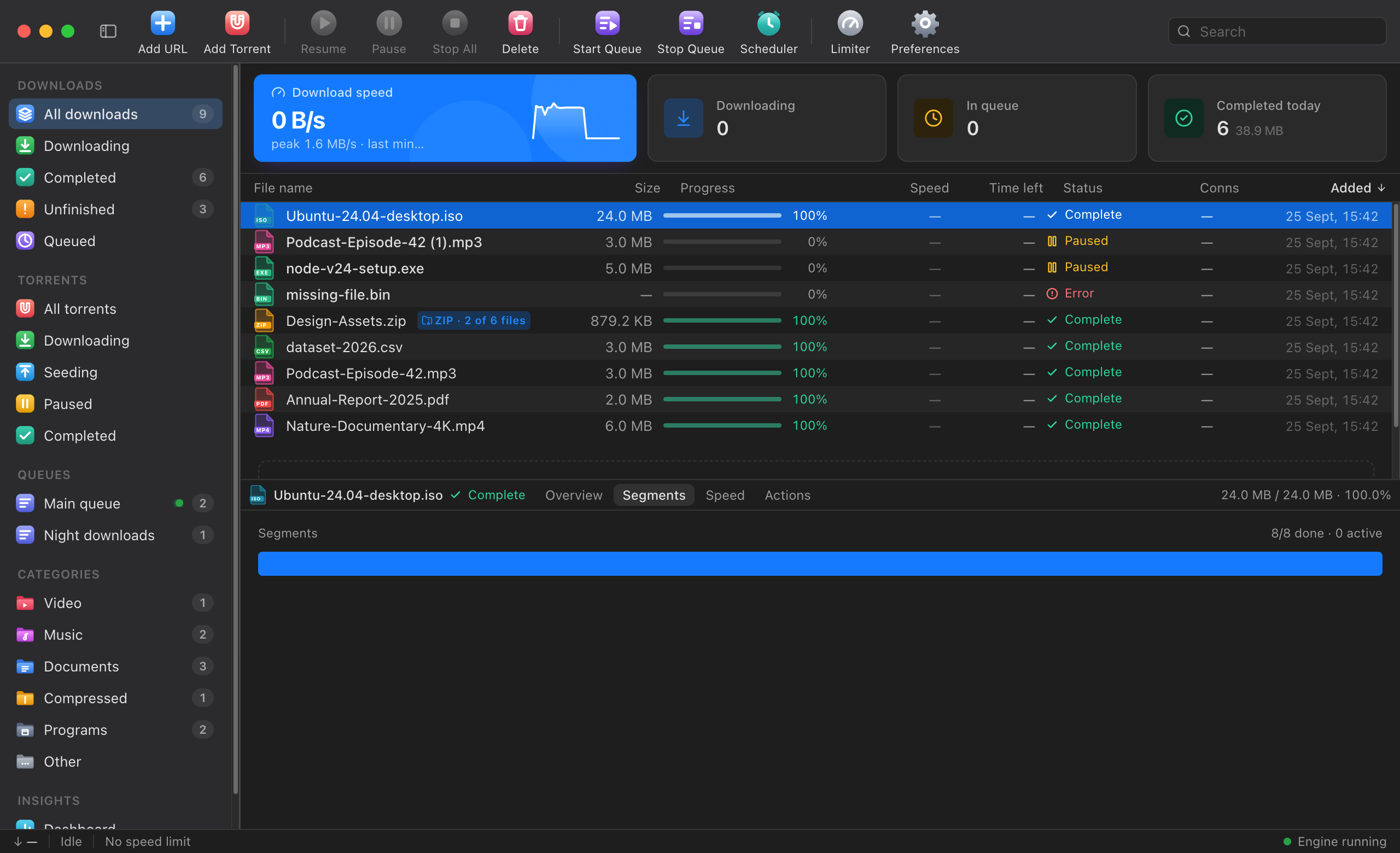
SQDM splits a file into parts and downloads them at the same time. Servers that cap each connection deliver many times more when there are several.
How it works
- A first request asks for one byte. The answer gives the size, the real file name and whether the server sends parts (HTTP Range).
- The file is cut into 8 parts by default; you can allow up to 32. Each part has its own HTTP/1.1 connection — never several parts squeezed into one HTTP/2 connection.
- Work stealing: when a part finishes, its connection takes over the second half of the part with the most bytes left, as long as that is over 1 MB. The end of a download doesn’t crawl.
- Adaptive: SQDM adds connections while the total speed keeps rising and drops them when a server answers 429 or 503. It remembers each site’s limit for next time.
- Needs
- A server that supports HTTP Range for more than one connection. Without it, SQDM uses one connection.
02 / 13
Pause any time. Resume after a crash.
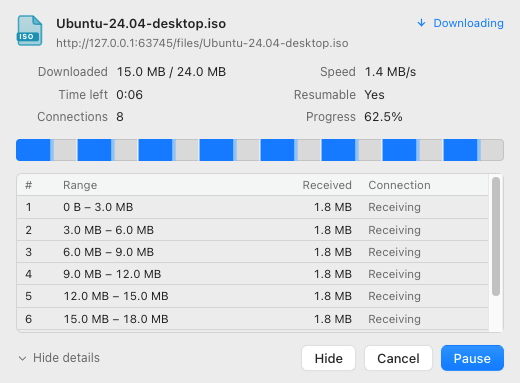
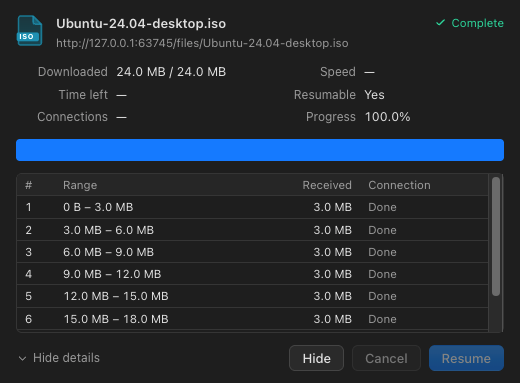
Progress of every part is saved at least once a second. Quit, crash or reboot — the download continues where it was.
How it works
- Each part’s position is stored in a local SQLite database, and flushed to disk before it counts as saved.
- Downloads that were running when SQDM stopped continue by themselves. Ones you paused stay paused.
- Before resuming, SQDM checks the file hasn’t changed on the server (ETag, Last-Modified, size). If it has, it starts over and tells you instead of stitching two versions together.
- Optional SHA-256 check when the site publishes a hash.
03 / 13
Paste a link and see the file first
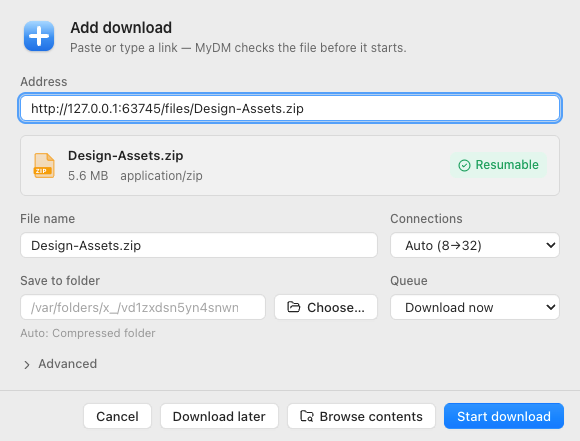
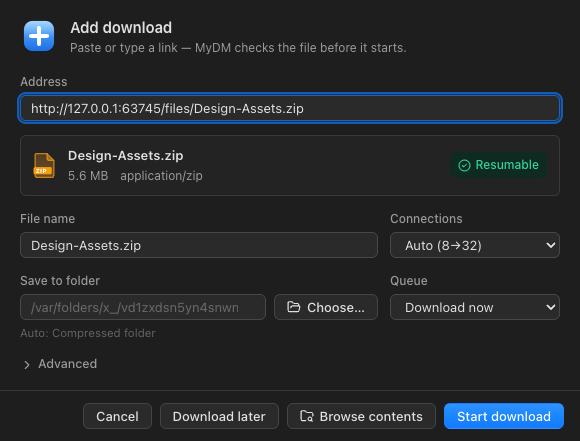
The Add window checks the link before anything starts: name, size, type, and whether the server lets it resume.
How it works
- Paste anywhere in the window, drop a link on it, or let SQDM pick up links you copy (clipboard watching is optional).
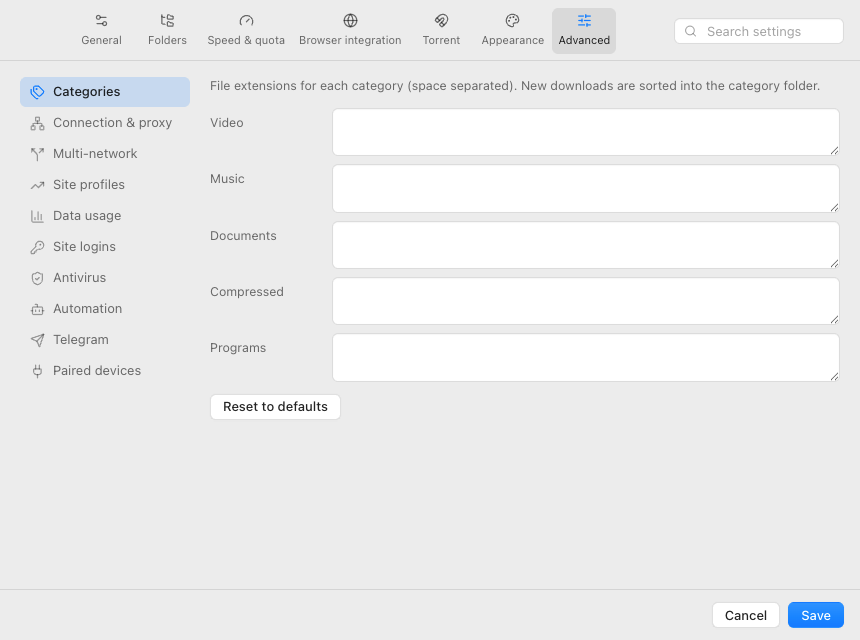
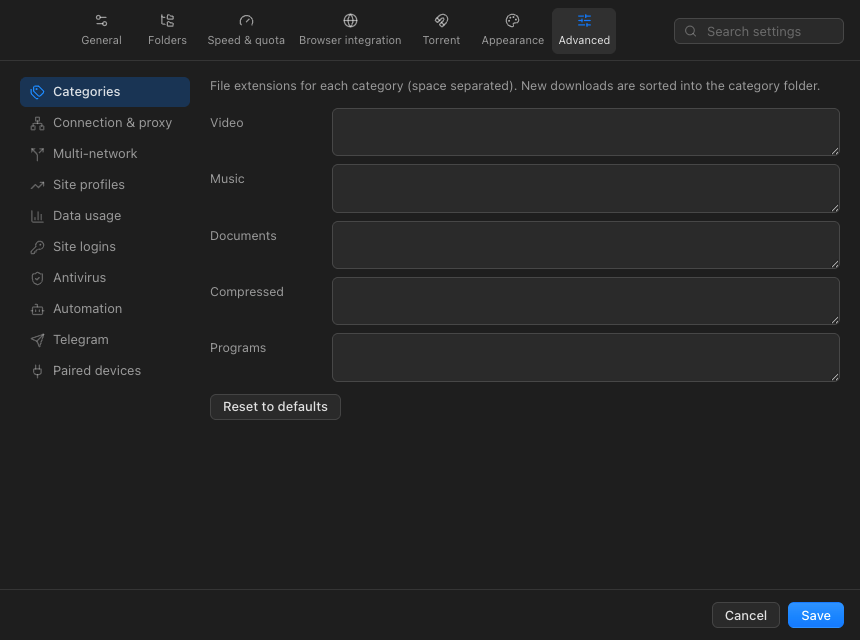
- Files land in category folders — Video, Music, Documents, Compressed, Programs, Other — or a folder you choose.
- Same file twice? Rename, overwrite or resume the existing one.
- Custom headers, cookies, referrer and user agent per download; HTTP/SOCKS5 proxy; FTP and FTPS.
- Limits
- Site logins: HTTP Basic only. NTLM/Kerberos (Windows domain sign-in) isn’t supported.
04 / 13
Decide what runs, and when
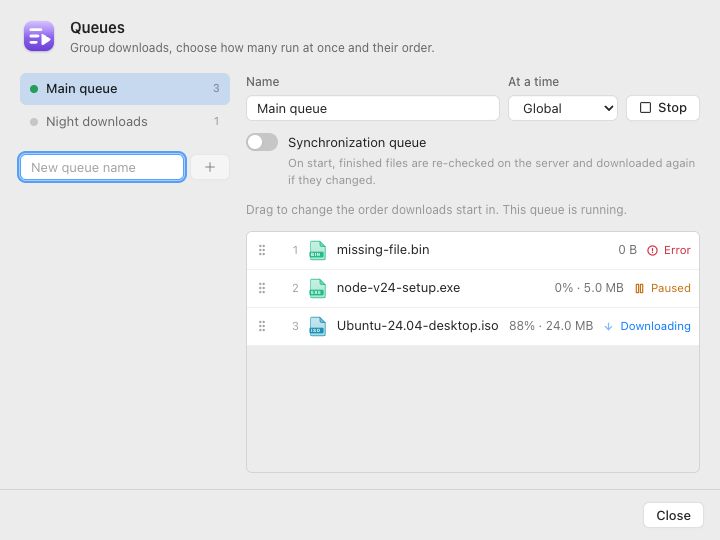
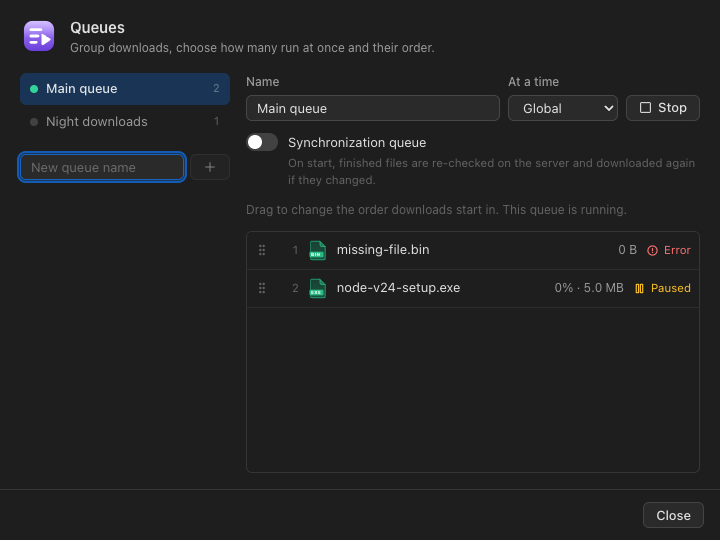
Queues keep order and limit how many files download at once. The scheduler starts and stops them at set times.
How it works
- Drag to reorder. Each queue can have its own limit on downloads at once; the default overall limit is 3.
- Schedules: start and stop times, daily or on chosen weekdays, and what to do when done — notify, sleep or shut down, with a 60-second chance to cancel.
- Hourly and daily data quotas for metered connections.
05 / 13
Downloads from the browser go to SQDM
The extension hands downloads over with the page’s cookies, referrer and user agent, so files behind a login download too.
How it works
- Catches files by type (archives, installers, disk images, video, audio, documents) or by size; everything else stays in the browser.
- “Download with SQDM” on links, images, audio and video; “Download all” for a page’s links.
- A small button on direct video and audio files. DRM-protected and streaming-site video is never touched.
- If SQDM isn’t running — or the disk is too full — the browser keeps the download.
- Needs
- Chrome, Edge or Brave (one build). Firefox as a temporary add-on for now.
- Pairing once with a 6-digit code shown by SQDM.
- Limits
- Not in the Chrome Web Store, Edge Add-ons or Firefox Add-ons yet: it is added from the app’s “Add SQDM to your browser” guide.
06 / 13
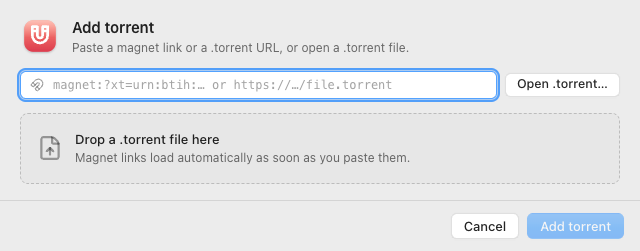
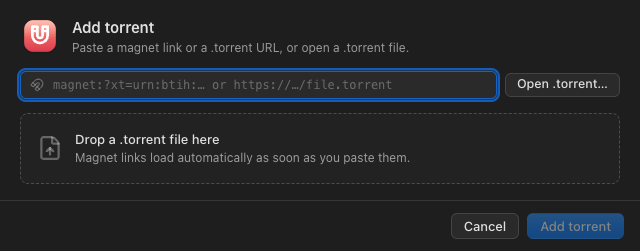
Torrents, with guard rails
Magnet links and .torrent files in the same list as everything else, with file picking and seeding limits.
How it works
- Pick which files to download, before or after starting; priorities where the torrent library supports them.
- Seeding stops at a ratio (1.0 by default) or a time limit; or right after the download.
- Only on networks you allow; a kill switch turns torrents off everywhere.
- Paths inside a torrent are checked: no “..”, absolute paths or reserved Windows names; free disk space is checked before it starts.
- Limits
- Off until you turn it on and accept a one-time notice. Seeding shares data publicly and your IP address is visible to peers.
- No per-torrent speed limits (the torrent library only supports limits for all torrents together).
07 / 13
Download single files out of a remote ZIP
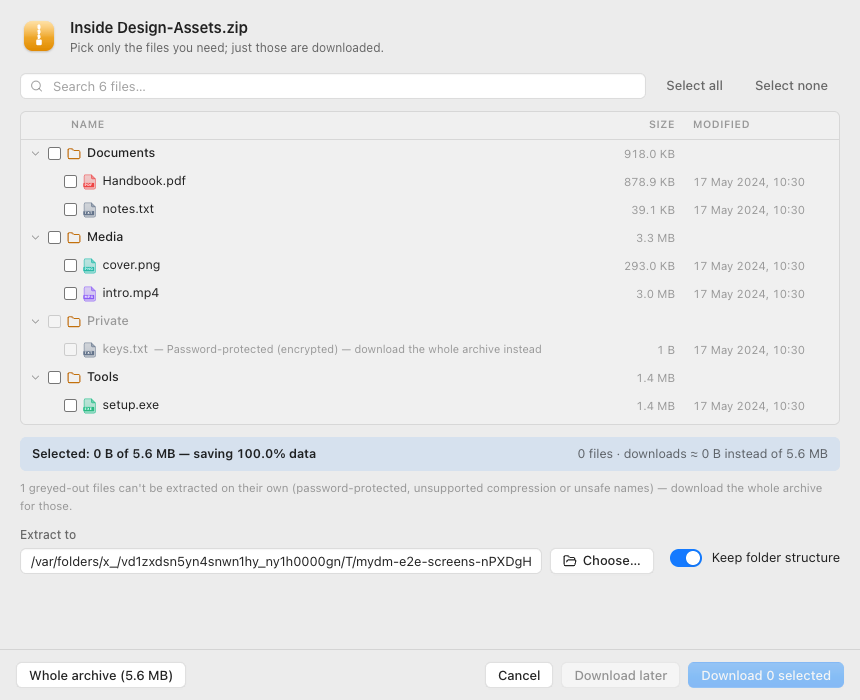
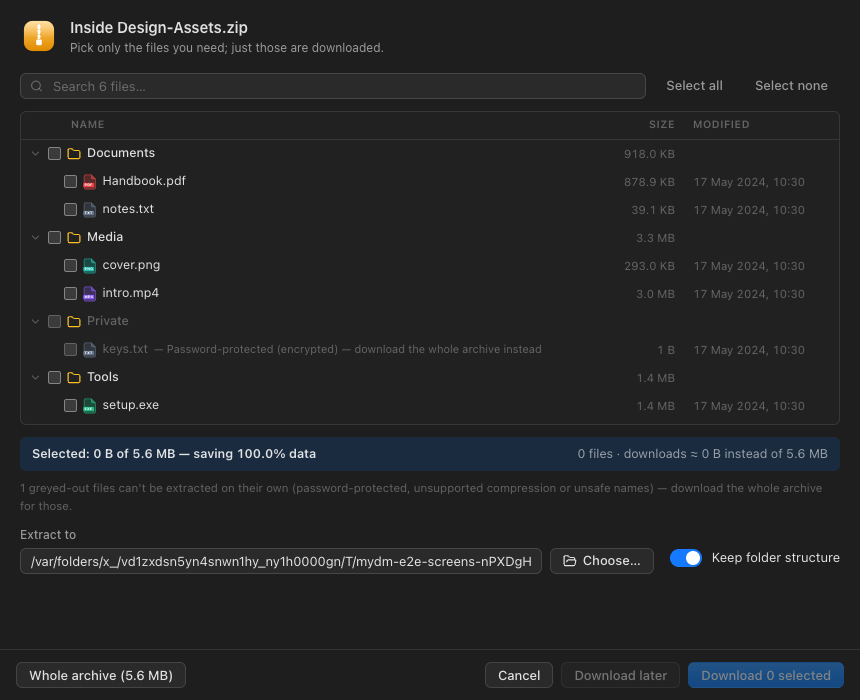
SQDM reads the archive’s table of contents over the network and downloads only the entries you tick.
How it works
- It fetches the end of the archive to find the central directory (ZIP64 too), then lists every entry with its size and date.
- For the chosen entries it fetches only their compressed bytes — with the same multi-connection engine — then unpacks and CRC-checks each one.
- Paths are checked against zip-slip (“..”, absolute paths, drive letters).
- Needs
- A server with HTTP Range support and a known file size.
- Limits
- Stored and Deflate entries only. Encrypted entries and other methods (Deflate64, BZIP2, LZMA, Zstandard, XZ) are greyed out, with the option to download the whole archive. Split archives aren’t supported.
08 / 13
Use two networks for one file
With bonding on, parts of the same file travel over several networks — broadband and a phone hotspot, or two providers.
How it works
- SQDM finds your network interfaces (and re-checks every 10 seconds), tests each one, and binds connections to a chosen interface.
- Parts are shared out by each network’s measured speed and re-balanced every few seconds.
- If a network drops, its unfinished parts move to the others without starting again.
- Needs
- Two working network connections on the same computer.
- macOS
- Works with the system routing; checked by hand with simulated networks.
- Windows
- Built; being verified on Windows PCs.
- Limits
- Off by default. Where the system routes by destination and ignores the chosen interface, SQDM detects it and says so rather than failing silently.
- Torrents never use bonding.
09 / 13
What happens when a file lands
Rules match by category, file type, site or size and run their steps in order after the download (and checksum) finish.
How it works
- Extract: ZIP built in; 7z and RAR through 7-Zip when it’s installed. Zip-slip protection.
- Scan: ClamAV on macOS, Microsoft Defender on Windows. Threats go to a quarantine folder.
- Move, or rename with a pattern ({name}, {date}, {domain}, {category}).
- Run your own command — without a shell, with a timeout, output in the log. Off until you confirm it.
- macOS
- Virus scan needs ClamAV (brew install clamav); 7z/RAR need 7-Zip.
- Windows
- Virus scan uses Microsoft Defender; 7z/RAR need 7-Zip.
10 / 13
Add downloads when you’re not at the computer
A Telegram bot you approve, or the SQDM window opened from a phone on the same Wi-Fi.
How it works
- Telegram: paste your bot token (stored encrypted). Only chats you approve can send commands — /add, /list, /status, /pause, /resume, /cancel, /zip. Plain links are added directly.
- Notifications to approved chats when downloads finish or fail, and when a data cap is near.
- Same Wi-Fi: turn on network access and open SQDM’s address from a phone or another computer. Each device pairs with a code shown on the computer running SQDM.
- Limits
- Telegram uses long polling (outgoing only); SQDM never opens a port to the internet.
- Downloads started from another device still save on the computer running SQDM.
11 / 13
See where the data went
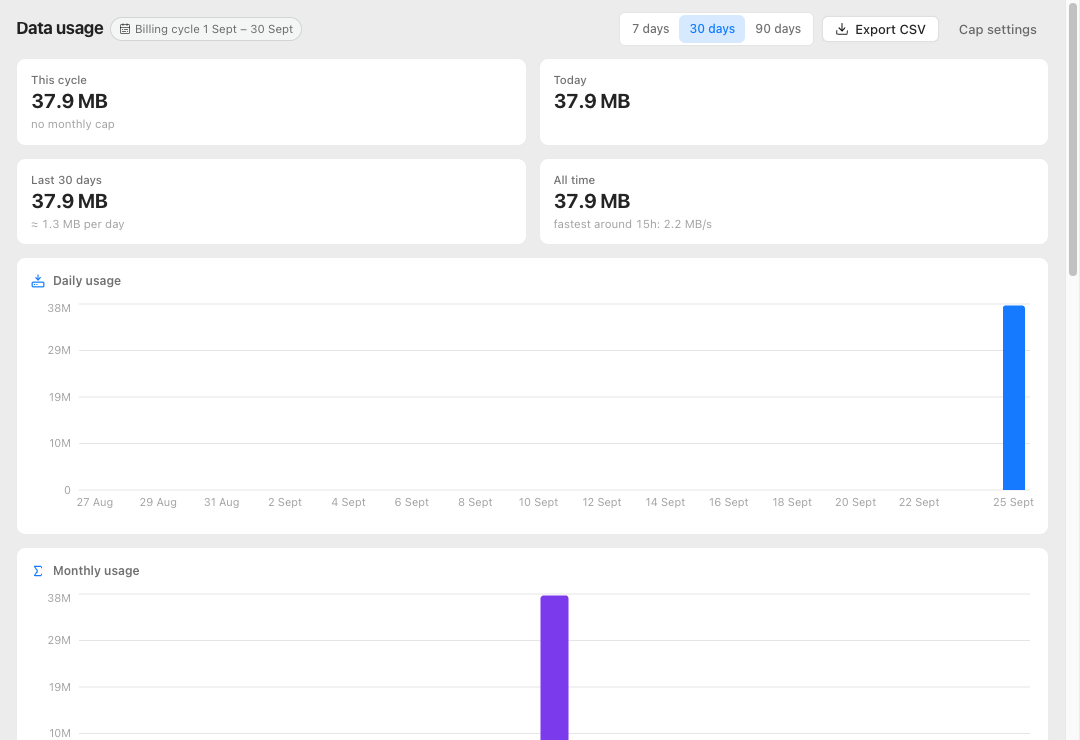
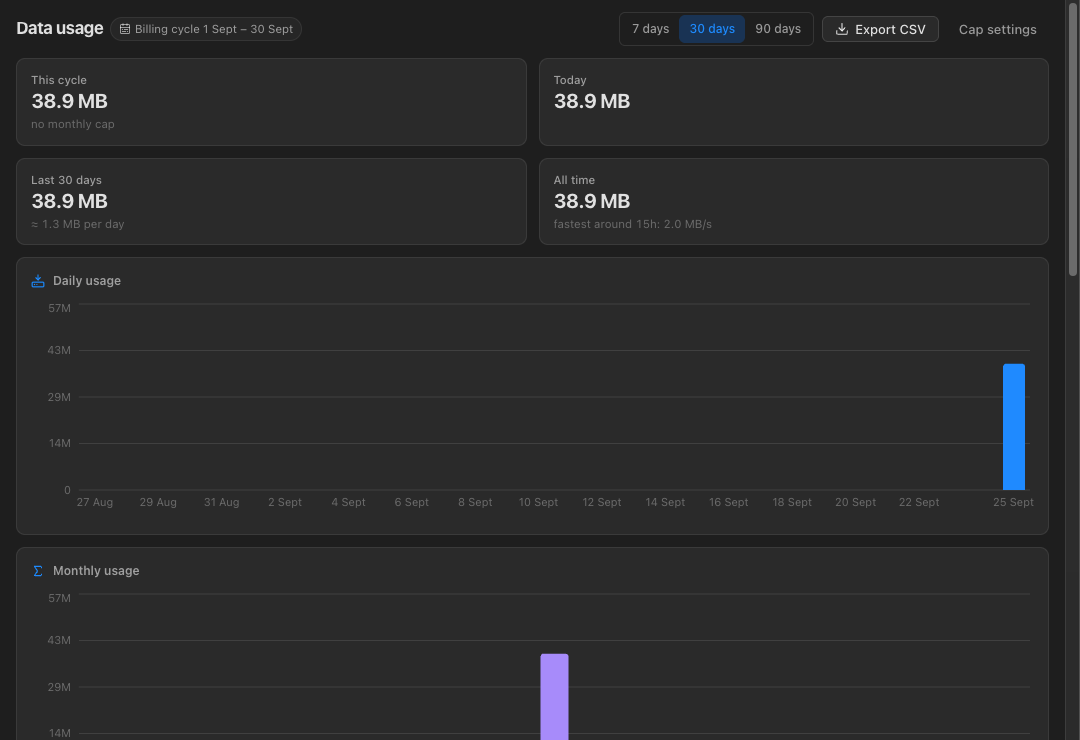
Usage by day, month, site and network, and a cap guard for metered plans.
How it works
- Charts for daily and monthly use, top sites, per network, and average speed by hour of day.
- Set a billing-cycle start day and a monthly cap, overall or per network. Warnings at 80 % and 95 %; downloads pause at 100 % unless you override for this cycle.
- Export as CSV.
12 / 13
A native app on each system
Menu bar on the Mac, tray and title-bar menus on Windows, the same commands and shortcuts everywhere.
How it works
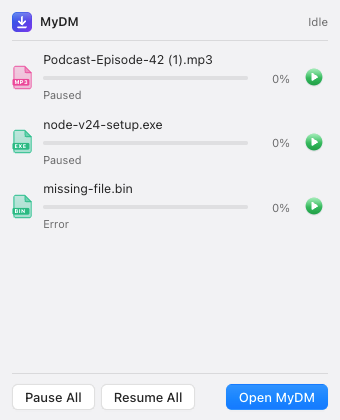
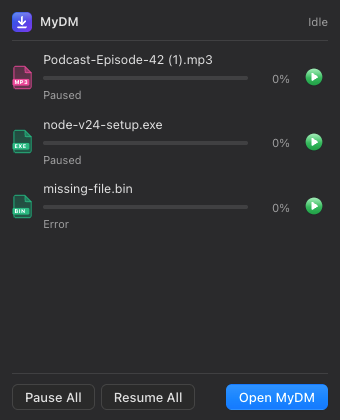
- Menu bar / tray mini panel with running downloads, pause and resume.
- Native notifications with Show in Folder; a progress window per download and a “download complete” window (both optional).
- Drag links or .torrent files onto the window; drag finished files out of the list.
- Starts at login if you want, hidden in the menu bar or tray.
- macOS
- Full macOS menu bar, dock progress and badge, Quick Look (⌘Y).
- Windows
- Own title bar with menus, Mica on Windows 11, jump list. Built; being verified on Windows PCs.
- Limits
- Automatic updates are prepared but off until an update server is set up; on macOS they need a signed build.
13 / 13
Your downloads stay on your computer
The download engine runs locally and answers only this computer unless you allow more.
How it works
- The engine listens on 127.0.0.1 only. It rejects requests with an unexpected Host header (DNS-rebinding protection) and websites not on its allow-list.
- Browsers and extensions pair with a 6-digit code (2 minutes, 5 tries) and get their own token, stored hashed and tied to their origin; you can revoke any of them.
- No account, no telemetry, no uploads.